How can I convert Audible.com .AA files to MP3 audio files?
Use these simple instructions to easily convert audible .AA files to (non-DRM) MP3 files so that you can play the MP3 files on any MP3 player. This article describes where to get the special file you need to perform this easy audible .AA conversion to MP3.
Goldwave, is simply an audio conversion program. It requires the audible Codecs to perform the conversion, but is not distributed with them, so the audible Manager software must be installed before Goldwave can open an audible .AA audio file.
UPDATE: Newer versions of the audible and Goldwave programs have been released since I last revised this article a few years ago. So, here is one important distinction between the old instructions and the new instructions: You must to install an obsolete audible file called “audibleMediaPlayerFilter.exe“ This is the “secret” of this method and your conversion won’t work without audibleMediaPlayerFilter installed. You can use a search engine like Google to search for “audibleMediaPlayer.exe” or you might be able to download it from this link.
UPDATE: Important notes about the audible Manager software: This method to convert audible .AA files to MP3 was successful with audibleManager version 5.5.0.3 which was the latest version as of 5/22/2009. It also worked with every other version of audible software I tried and I suspect it will work with all versions of audibleManager software. When installing the audible software, be sure to select audible’s “Listen on my Computer” option so that the correct files are installed by audible for the Windows Media player. If you’re able to listen to your audible files in the Windows Media Player, then your audible Manager is installed correctly.
UPDATE: Important notes about the Goldwave software: This method to convert audible .AA files to MP3 was successful with GoldwaveaudibleManager version 5.52 which was the latest version as of 5/22/2009. However, the recent versions of Goldwave are “demo” versions that require payment after a certain amount of time or a certain number of times used. You may want to search the internet for “Goldwave 5.06” which is an older full version that never expires. You may want to archive (back up) the Goldwave 5.06 installation program in the event you need to reinstall it in the future.
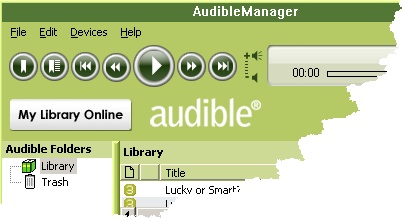
The original article (with updates) begins here:I have an old audible account that I’ve not used for a couple of years, so I logged into my old account then downloaded and installed the audible manager software, which did the job of installing the audible “.aa” codecs on my computer. I used my user ID and password to start the audible Manager software. Important: You will need to note the computer folder to which your audible .AA files are downloaded: From the audibleManager menu, click”Edit” then “Options” to display a dialog that includes the “Location of Audio Files.”
.
1) From audible, I downloaded a copy of the audiobook “Next,” that I had purchased a few years ago. When the download was complete, I completely closed the audible Manager software.
2) I then started the Goldwave audio conversion software and I performed a “File|Open” command to load the audiobook (.AA) file from the audible download directory. Remember: from the audibleManager menu, you can click”Edit” then “Options” to display a dialog that includes audible’s “Location of Audio Files.” Reminder: This is the “secret” of this method it that you must find and install the obsolete audibleMediaPlayerFilter file. You might be able to download it from this link.
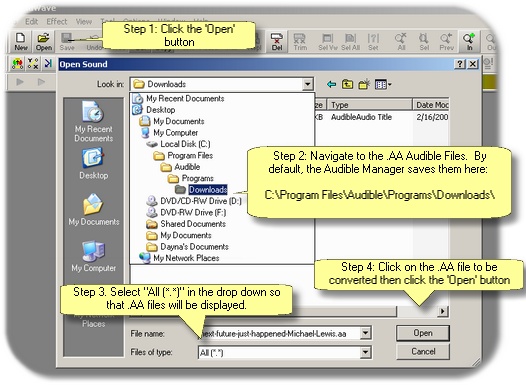
3) Be aware that Goldwave (may require the ID and password of the audible user who originally purchased the file before it can be opened. After you convert the file to MP3, however, you can play the MP3 file on any device without entering the audible ID and password.

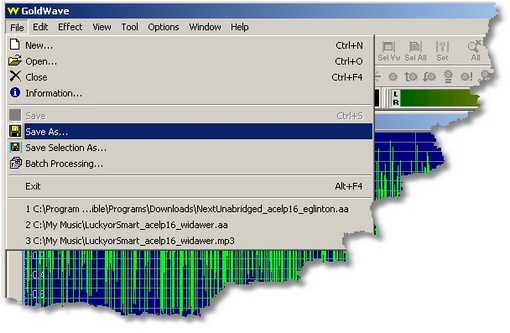
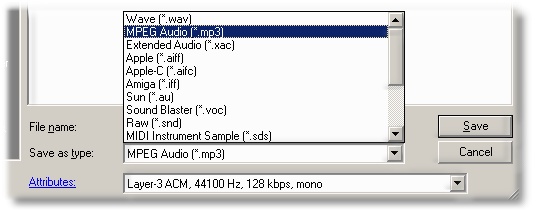
4) After successfully loading the audible (.AA) file into Goldwave, I selected “File | Save” then used the drop downs to select a target MP3 format file with a setting of 128kbps and a sample rate of 44100. Goldwave successfully wrote a new MP3 file to the target directory. It took Goldwave about 35 minutes to convert my 6 hour, 42MB, .AA audio file to a single large MP3 file.
UPDATE 5/2009: The first time you use Goldwave to convert an audible .AA file to .MP3, the following error may be displayed: “Encoder not found. A recent versionto the MPEG Layer 3 encoder LAM MP3 cannot be found.” The “LAME” encoder is a free file that many sound programs use to create MP3 files. You can usually click the “download” button (displayed with the Goldwave dialog) to download and correctly install the LAME MP3 file.
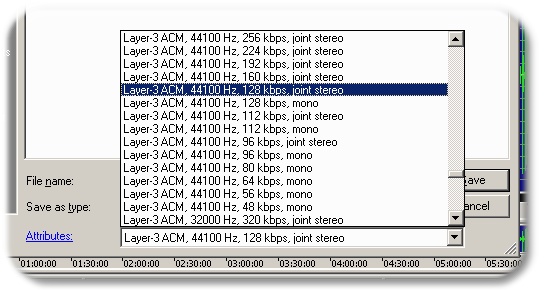
5) I used a program called, “MP3 DirectCut” to slice large single MP3 files into 10 or 15 minute segments. Update: thanks to “JLC” who posted this great description of how to use the Goldwave program to divide the MP3 file into separate tracks during conversion without using MP3 Direct Cut.
Did you enjoy this post? Why not leave a comment below and continue the conversation, or subscribe to my feed and get articles like this delivered automatically to your feed reader.
Comments
Sounds like you are running out of RAM. The GW conversion process requires an incredible amount of memory.
A very good forum on this subject can be found here:
SoundTaxi is simple to use and it works as advertised. I searched for all my protected .aa files and dropped them to the program and the magic started right away! A must for any one who buys Audible audiobooks.
http://www.soundtaxi.info
I used to open .aa files and save them as .mp3 files all the time. Now when I try, Goldwave tells me that it can’t recognize the file format. When it used to work, it would automatically launch the Audible.com codec but now it doesn’t… it just gives me the message that it can’t recognize the format.
Any ideas what might have happened? Others seem to have success with the latest Goldwave and the latest Audible.com codec.
Hi, this may sound strange, but I would like to know if there is a way to convert an audio book in mp3 format to audible audio format. I just bought a nuvi and would like to use some of my older multi file mp3 books on there. Thanks.
You can use the Goldwave program to divide your audible files into tracks while it’s doing the conversion. I prefer this method instead of using something like MP3 Direct Cut because Goldwave makes gapless tracks. The tracks play back with no pause between.
To do this, follow the first three steps above. In step four, instead of doing the File|Save, click on Options, then on File Format. Now, click on the Default Save Format tab and select the format you want, MP3, WMA, etc. In the attributes box, select which attribute you want and then make sure to check the “Use this format for Save As, Save Selection As, and Copy To” box. The Auto Cue setting discussed next won’t work unless you set the Default Save format first.
Now, click on Tool, then Cue Points, then Auto Cue.
Select the Spacing tab. The “Starting at time” should be 0.00. In the Interval box, select the length you want your tracks to be. (Please note, 1.0, 2.0, 5.0 etc. are seconds, not minutes! Five minutes is shown as 5:00.00, thirty minutes is shown as 30:00.00. One hour would be shown as 1:00:00.00.)
Click on OK and the Cue list will be shown. Now, click on Split File. In the Destination Folder, browse to where you want the file to be saved. In the “Base filename” box, it will show track# or track##. The number of number (#) signs is how digits will be in the track number. If you will have 9 or less tracks, you should have track# in that box. If there will be 10 to 99 tracks, it should be track##. One hundred or more would be track###.
In the “First number” box, you can put whatever number you like and that will be the track number for the first track. (This is handy if you are converting a two part book. If the first part comes out with 6 tracks, you can start the numbering for the second part at 7 so you will maintain the proper numbering.) When you are done, click OK and Goldwave will start processing the tracks.
This post uses the information gleaned from other posts, I hope it helps.
In order to use Goldwave (Google: gmwave506.exe)to convert .aa from Audible files:
1. Uninstall Audible (current version blocks conversions)
2. Install the Win98/ME version (old version, works fine in XP)- It appears that Audible no longer has this file available on their site that I can find. Search google for it. (AM_CDBurner.exe)
3. Uninstall Goldwave 5.x
4. Install Goldwave 5.06 (Google it, I downloaded from Download.com)
5. Open Goldwave
6. Choose All Files (of type)
7. Navigate To Your .aa File
8. Open It
9. Enter Your Username/Password To Activate The File (if required)
10. Watch As It Converts
The above steps worked for me. And whats great about GoldWave is that it Batch processes everything all at once. If you have a Zune you just need to change the file tag to Podcast for it to remember last pause point automatically.
The following torrent link contains an entire package for converting aa to mp3 as well as some helpful tools for organizing audio (or any) mp3 files:
[isoHunt]_audible.com_aa_format_conversion_toolz.4014988.TPB.torrent
Assuming you have a bit torrent client like uTorrent or some other, the link will allow downloading the torrent for the package which contains:
Audible Manager 3.5.exe (An older version that works fine with Goldwave)
gwave508.exe (An older version that can convert the .aa files
to mp3 or nearly any other format)
lamewin32.exe (The latest mp3 codec – works with Goldwave)
And some icing on the cake:
RenameMaster.exe (My favorite file renaming utility)
TagRename34.exe (An excellent ID3 tag editor)
This is available as of 2-6-08. May not be available after a month or two.
BTW – SoundTaxi works but takes FOREVER!!! I mean hours to convert a 100Mb+ file (and I’m running a 3GHz with 2Gb mem).
Goldwave is very fast at converting aa to mp3. It’s also very EASY to auto-cue large files at, say 15 or 20 minute intervals, and split it into mutiple files at the cue points. It also has automatic incremental file renaming of the split files. You determine the intial base file name you want and tell it how you want the numbering to increment. It takes care of the rest – plus, it remembers those settings and will default to them the next time you split a file. You just change the filename and storage location to suit. Converting a 100 Mb plus file, splitting and saving into 20 minute segments, takes all of about 10 minutes. It takes you all of about 1 minute of actually being at the computer (assuming you’ve already downloaded the aa file from Audible.com.
Also, refering to the last post, if you had an old version of Goldwave working before and made THE HORRIBLE mistake of upgrading your Audible Manager to the latest version (not sure which version number is the cutoff) you found that Goldwave could no longer open their creepy aa files. The download package referred to in that last post takes care of this issue. You just un-install your current (mistake) version of Audible Manager and install Audible Manager 3.5 included in the torrent download. Wolllahh! You’re back in business! Now – DO NOT EVER UPGRADE AUDIBLE MANAGER AGAIN!!! EVER!!!
One last thing: Even though Audible.com is being kind of a pain in the butt with their aa weirdness, after you have the mp3 conversion, DON’T screw them by putting it out on the net or giving it away to all your friends. Audible provides a useful service and deserves to have their material protected from free distribution. Put yourself in their shoes. Just use the mp3 instead of the lame aa and let the enhanced listening freedom that the mp3 provides be enough.
Cheers,
jf
Sorry – link didn’t work.
Here’s the package – http://isohunt.com/torrent_details/33639292/audible
jf
There’s actually a very easy way to convert aa to mp3 (still using Goldwave). Read:
http://forums.afterdawn.com/thread_jump.cfm/589613/3562882
Get the “kit” that’s linked there. It’s easier than my package and doesn’t require older versions of Goldwave.
jf
After I tried some ways to convert files, I found Daniusoft Digital Music Converter could convert many popular audio files.
http://www.wmatomp3-converter.com/digital-music-converter.html
Any other good suggestions?
Hi, Blueberry
Yes, I have used the Digital Music Converter
And its conversion speed attracted me the most.
BTW, I heard that Daniusoft released a Digital Media Converter PRO recently which added more popular video and audio formats.
Here you can get more information about it
http://www.wmatomp3-converter.com/digital-media-converter.html
It seems Audible may have finally caught onto the trick of using an older version of their software to download .aa files for conversion. I’ve been using AudibleManager 4.0 to download my audiobooks and then was using DBAmp to convert them to .mp3, and this worked as of last month. Yesterday, I went to download a few new books and my AudibleManager bombed, saying that it was “unable to load parameter file”. I went to Audible’s website, and they say the way to fix this is to upgrade to latest version of their software (which blocks the converter apps)! I’ve tried several other old versions of the Audible software I found on the net as well, and they’re all displaying the same parameter error. I also tried the new downloader from the Audible site, which of course works just fine to get the audiobooks, but also prevents the converters from working correctly. Has anyone run into this beside me? Know how to fix the “unable to load parameter file” problem?
JLC, you say Goldwave will produce gapless tracks. On what medium? If I play back the tracks produced by GW in WinMedPlayer, they do play seamlessly and even if words were split, it’s not detectable.
However, when I burn a CD with the MP3′s, there is a pause between tracks which causes works to be interrupted for a second or so, and it gets irritating after a while.
I’m trying to figure out how I can burn these tracks to a CD without a gap. Roxio won’t do it. Any ideas?
Are there any freeware applications out there that will split a large mp3 file into tracks based on pause detection. I haven’t found a freeware version yet.
I’d like to hap gapless tracks so that if I remove the CD from the player, I can easily find where I was when re-inserting the CD.
You can download the aa file on one computer with the latest Audible Download Manager software and then copy the .aa files to a computer set up as described above.
try reinstalling the old manager after getting the new book and uninstalling the new AudMan maeby it will work, dunno.
i do know that the kit from afterdawn works like a charm
Im using the current version of Audible, and the current version of GoldWave with no issues at all. However you will need both the msvci70.dll and the AudibleMediaPlayerFilter.exe
All this special software configuration and setup.
Recommendations that you download using one computer
and then convert using another? Argh!!!
I think I will finally start using some kind of virtual machine (VM) software. Now, I have Vista Ultimate 64 bit edition on my 4-core AMD Phenom. So I have to check
to see if I am licensed to install the 32-bit version on
a VM. Lots of stuff only works on 32-bit anyway.
I am already running Ubuntu 8.10 on that machine under
Microsoft Virtual PC.
DBPowerAMP 100mg audible file converted in than 13min 45 seconds.
SoundTaxi same 100mg file converted in in 15 min 32 seconds, BUT if your a Vista user you will triple this time or even higher, from now on its just the OS who will not be named to me.
As the music in iTunes is encrypted with DRM, you cannot directly put it on any non-Apple MP3 player. The easiest way is:
1. Insert a CD-R or CD-RW disc into your CD-ROM drive.
2. Burn your playlist to make an audio CD.
3. After the audio CD is successfully burned, insert the disc into your CD-ROM drive again. Then you can use iTunes to import the music tracks on the burned disc as MP3 files.
Or you can get some software to help you. I use TuneClone M4P Converter ( http://www.tuneclone.com/m4p-converter/ ) to do this. Though not free, it is very well worth a try. It generates a virtual CD drive to help to remove DRM from iTunes.
mp3directcut has pause detection.
You specify the length of the pause to detect and the minimum length for the parts (you simply tell mp3directcut how many seconds to skip after a pause was detected before ist starts looking for the next pause).
Simply try it. It’s free: http://mpesch3.de1.cc/mp3dc.html
I use SoundTaxi on a Vista Core Duo 2.0 gHz machine with 4gb RAM. It has worked great in batch mode, converting up to 10 files at a time, at an average rate of about 50 minutes per file — and these are book files, most of them 6 to 8 hours long. Converting a single file at a time is slow, at least a couple of hours, but on the flip side it’s no drag on my computer so I can do other things while it converts essentially in the background.
For installing the software under Vista there are two key points. First, you must DISABLE remote desktop. To do this, enter “system” in the search box on the start menu, choose “system” from the options, and click on the line at the left that relates to remote desktop. Second, disable your antivirus during the course of the installation. I first installed SoundTaxi without doing these two steps and the software would not work. However, after an irate email to the seller I got this advice and it worked well.
My vote is that SoundTaxi is a reasonable option, especially if you have a lot of files to convert. It has taken me about 5 days to convert over 170 Audible files to equivalent MP3′s. I’m not jumping for joy, but if I did the play-in-a-player-and-record-the-audio trick, the process would have lasted about 2 months, during which my computer would have been unusable.
Hi everybody! Did anyone try the described GoldWave/AudibleMediaPlayerFilter.exe-method on Windows 7? It works perfectly on my WinXP machine, but GoldWave (the old version from the package) crashes when started on Windows 7. Any suggestions?
Just adding my recent experience with Soundtaxi Professional (latest version) as I found this site by googling “Soundtaxi batch mode” while having problems getting more than one file at a time to convert.
It works great as long as iTunes doesn’t get involved. Make sure Audible Manager is installed as the default player for your Audible files. If you have enhanced Audible format files (aax), Soundtaxi insists that iTunes is required. However if you change the file extension of your enhance format file to aa (regular Audible extension), it works just fine in batch mode by either specifying a folder to automatically convert or dragging multiple files over to the Soundtaxi window.
Before I changed the extension my quad core with 8gb RAM would only convert one file at a time at 1X speed using iTunes to play. Now it will convert around 16 files overnight using the Audible Manager player.
Should have mentioned above that I’m using Windows 7 Professional 64bit and thanks to Derek as his post for made me think about iTunes being the default player as an issue.
I actually am using the two computer set up and moving the files over to covert them to the mp3′s. However, on some files (about 30%) I get an error when I try to open the file with GoldWave that there is “No Audio Content Detected”. Sometimes it even happens with the second part of a book after part 1 worked fine. I tried to delete the file and re-download from Audible without any luck. Any ideas?
Thanks Lisa, I was able to reproduce your results with the new Audible Enhanced format using SoundTaxi. This finally seems to be a workable solution. I think it is actually using the Windows Media Player engine, not Audible manager to play the files though. I’ve been trying to move my everyday audiobook listening from my Cowon D2 (which doesn’t play the new aax) over to my new droid eris phone. I will probably still use the D2 for long travelling days though because of battery life.
On the android platform I highly recommend AstroPlayer. It has very similar bookmarking capabilities to the Cowon D2 and developer updates the thing every week or 2. It even supports bluetooth stereo, which will be really cool once I get some headphones for that and an interface for my car.
thanks for the instructions. I used the orginal set of instructions at the top of the page. it process worked but the the resulting mp3 file is just under 500 meg. the aa file was only 113 meg. is tehre anyway to reduce the size of that mp3 file?
Thanks
Worked for me. Windows 7 install following these instructions, and getting the exact versions posted (a Google search and you can find them – don’t get the latest versions).
Note though that the required DLLs for the Audible install are no longer included with Windows 7 and later. You have to download them. You can get the two missing MSVC*70.DLL files from dlldump.com, as it’s where I found mine and scanned for virus’:
http://www.dlldump.com/dllfiles/M/msvcr70.dll
http://www.dlldump.com/dllfiles/M/MSVCI70.dll
I also snagged the required LAME_ENC.dll from there too:
http://www.dlldump.com/dllfiles/L/lame_enc.dll
Place them in your C:\Windows\, and then follow the instructions above to install Audible and then GoldWave.
Worked like a champ afterwards.
TIP: GoldWave supports BATCH processing. I had 100+ AA files to convert. Just queue up the files, check the box for “Convert to”, select 128kbps MP3, and let it sit and crank for a while. Have a donut.
Enjoy!
Finally was able to find and download Goldwave 5.06 (wish I’d seen the more recent comments before that) and have installed it. I followed the instructions-steps, but the file that’s saved is just a lot of noise instead of the audiobook. Does anyone know what the issue is and how to fix it? Have spent hours on this now and it’s gotten very frustrating…
Thanks!
(Also downloaded the said audibleMediaPlayerFilter but when I run it keeps “Error Copying Files”)
down and dirty way will never fail…
get free “Audacity” program (windows installers available for this excellent open source editor/recorder) http://audacity.sourceforge.net/download/
if you want mp3 export you also need to DL lame.dll and put in same folder as audacity.exe
after installed simple three step process
1) set audacity to record master mix, and play your audio book
2) when finished, stop audacity and export to your favorite audio format (ogg, flac, wav and MP3 if dll added)
3) curse the time you allowed yourself to pay good money to bad Micro$hit enabling sites like audacity.com
[...] files directly on the Droid. I convert the Audible files to mp3s using Goldwave, see link below: How can I convert Audible.com .AA files to MP3 audio files? | Chuck Eglinton on Gadgets & Techno… I'm currently using Asro Player to play the mp3 files but the link below discusses several [...]
I use the Goldwave method with a slightly different trick. I run Windows 7 Pro so the Audible filter cannot be installed thereby rendering the method unworkable. To circumvent this, I created a virtual XP machine. I installed Audible, iTunes and Goldwave on it. I then batch a dozen or so to run on the VM. It works seamlessly plus, by being on a VM, I don’t have issues with GW hogging all my RAM. It uses everything I have allocated for the VM, but that’s it. I can go about my business while all this is happening within a protected shell.
BTW: You need to have Windows 7 Pro, Ultimate or Enterprise to use the MS Virtual Machine feature. It will also work with VMWare Workstation.
I got soundtaxi to work. I’ve been using it for years with Napster. Even though I have Napster to go it wouldn’t work on my wife’s iPod. I now have an android which audible doesn’t support yet. Soundtaxi converted the audible .aa files fine. You do, of course need to have the proper drm license for the file for SoundTaxi to work.
Any Android users out there I recommend Astro Player Beta for audio books. Best audio book player I’ve ever used. It will do bookmarks by play list. When you select a bookmark, it reopens the playlist first then goes to the file and time index of the file. I know… revolutionary idea… eh?
Thank you worked great, i used the link for the program you provided and it converted no probs. thanks much appreciated.
Here’s a surefire way to remove DRM from Audible (.aa), Audible Enhanced (.aax) or any other format that allows burning to CD, but without using up CDs.
Get a piece of software called Phantom Burner. It creates a virtual CD burner which you can then select in iTunes and burn your Audiobook/music to it. It saves the audio as .wav files which you can then convert to MP3 or MP4 using your favourite converter. I find foobar2000 good for quick encoding (right click on the files, convert, … and choose your settings).
Audible Enhanced is actually 64kbps mono audio, although given the reasonable quality they achieve with this low bitrate it’s probably MP4-encoded with variable bitrate and 64kbps as the target bitrate.
iTunes unfortunately ignores the bookmarks within Audible Enhanced and simply burns the file split into 8 minute tracks. Foobar2000 can be used to recombine into one very long output file, which you can then split up in the correct places if you have time.
I’ve tried the Goldwave method, but can’t get it to work as it comes up with a message saying it “cannot determine the format of the file”. Any ideas? I’ve tried various options but just end up with lots of hissing after the conversion!
Thanks, Andy.
Answer: Typically when Goldwave can’t determine the format of the file, either you’re using the wrong version of Goldwave or you’ve not installed the “audibleMediaPlayerFilter.exe“ file. Please ve suer you’ve installed audibleManager version 5.5.0.3 and Goldwave 5.06
Worked perfectly. Thanks so much for updating! I bought an Audible book hoping to play it in the car but realized I couldn’t put it on my usb drive which holds my music. You saved me! Awesome!
Hold it!!!!!
What you do is install Noteburner (acquiring a license in the correct way of course)
*google noteburner*
This creates a virtual CD drive, and when Audible uses Nero to burn to CD, you select the new CD drive as the target.
Noteburner then nicely converts it all to mp3 and places on your HD without ever going near a CD.
Hooray!
NOTE: The Noteburner method requires a LOT MORE WORK. Noteburner is just like burning a CD, except you burn it to MP3 files on a hard drive. So if your Audible file is 12 CD’s then you’ll have to “Burn to (virtual) CD” *twelve* times.
However, with the Goldwave method where you just tell Goldwave “convert the file to MP3″ and walk away. You only take an action once with Goldwave which is easier than burning 12 real CD’s or 12 “virtual” CDs.
I would like to add that Nero automatically includes all CDs for the project for the audiobook in question. So, once I click burn, Nero burns all CDs sequentially and adds them to the HD in order thanks to Noteburner. The only difference is that they are split in to smaller mp3s, about 7 mins each long. I would prefer the mp3 files were longer, but for the purposes of compatibility with all mp3 players (some of which don’t like playing mp3 files over 20 mins), this option may suit many people and it’s much easier to set up. In terms of time, I’m finding this option much quicker and less of a pain to set up and configure. But hey that’s just me
Hey people, I`m not able to convert Audible Enhanced files with Sound Taxi (version 3.6.5). Audible Manager is the default application for the .aax and .aa files and not iTunes but Soundtaxi still doesn`t recognize the files.
Any ideas?
Thanks! I had to dig a bit deeper to find a solution for Apple Mac users . Very simply stated the method is: The audiobook will play in iTunes on your Mac. Soundflower will route the speaker audio to the microphone where Audacity will pick it up and re-record it.
http://slapphappe.wordpress.com/2010/06/13/drm-workaround-for-your-audio-books/
I Use DRM Converter which works perfectly, it can record a .aa file that is 10 hours long in about an hour. I use it as want to listen to my audiobooks on my phone which doesnt recognise .aa format… yet (come on android)
I think the software cost me about £10 and is well worth it
Thank you. After subscribing to Audible.com for almost a year, I decided not tp pay monthly anymoret. When I had to reinstall Audible to my iPAQ PDA,, I discovered I could no longer install Audible software to the PDA. I did not want to have to listen to audible files on a desktop or laptop computer.
I usually purchased self-development, motivation and inspirational audiobooks, which include affirmations or meditations. So, I often wanted to play affirmations and not have to listen to entire audiobooks. Since Audible made that almost impossible, it was great to find your article. Plus, Audible tech support, told me that any bookmarks I placed on an audiobook on one computer or device could not be transferred to that audiobook on another computer or device.
I downloaded the AudibleMediaPlayerFilter and Goldwave 5.06 and was able to convert the *.aa files to *.mp3 files. Thanks again. Take care.
i did this an made tracks and moved them to my new Motorola i1. But when playing them as Music i can’t go back to where i left off in listening to my book! Not very practical for books then?
ChuckEgg’s reply: Hi Kim. Please read the entire article to learn how to split the one track into many tracks. if you split the one long audio file into 2 minute segments your Motorola will restart at the 2 minute segment you most recently played.
Please, view my article again then use your browser to search for the word “split”
http://www.chuckegg.com/how-can-i-convert-audiblecom-aa-files-to-mp3-audio-files/
For example:
Goldwave is very fast at converting aa to mp3. It’s also very EASY to auto-cue large files at, say 15 or 20 minute intervals, and split it into mutiple files at the cue points. It also has automatic incremental file renaming of the split files. You determine the intial base file name you want and tell it how you want the numbering to increment. It takes care of the rest – plus, it remembers those settings and will default to them the next time you split a file. You just change the filename and storage location to suit. Converting a 100 Mb plus file, splitting and saving into 20 minute segments, takes all of about 10 minutes. It takes you all of about 1 minute of actually being at the computer (assuming you’ve already downloaded the aa file from Audible.com.
Just found a solution to my problem. Sorry and thanks a lot for all your trouble of trying it out and writing this up. Am so happy to be able to do this. I’ve just converted my first aa-file. Hundreds more to go. Then I won’t need to get a new car radio which supports ipods.
Hi, I got GoldWave 5.06 to play aa files in a Win7-64 bit PC after following your instructions. However I can’t make it work for aax files. Any suggestions? Thanks.
I’m a bit irritated with itunes, so I am looking for another media player to use. However, I have a lot of audio books and would like to have a player that separates the two files. I’m trying to use windows media player, but so far no luck. Any suggestions or advice would be appreciated.
Thanks.
This is working. I just converted a 6 hour .aa in 18 minutes. Not bad at all. In the process of looking around I found a great program called DRMBuster, but it’s $50 and I prefer the free older version of GoldWave. But from what I could see DRMBuster was very easy to use and did not require any juggling of other programs.
As of December 1, 2010, this method is working using GoldWave 5.06. Remember to first install audibleMediaPlayerFilter.exe. Also, when I installed GoldWave, it said a file called lame_enc.dll was missing, so I googled it, downloaded it (from http://lame.buanzo.com.ar/), and put it in my Windows system folder. I don’t know if it was necessary, but it stopped GoldWave from complaining.
Thanks Chuck!
I agree with Mark (poster #57) that As of December 3, 2010, this method is working using GoldWave 5.58.
Remember to first install audibleMediaPlayerFilter.exe. Also, when I installed GoldWave, it said a file called lame_enc.dll was missing, Version 5.58 offered to download and install the dll file and put it in my Windows system folder. The file must have been necessary, as it stopped GoldWave from complaining and I was able to successfully convert a 87.7 MB [pt 1] and 90.2 MB [pt 2] files of the unabridged copy of Dean Koontz’s novel ‘Lightning’ from the dreaded Audible .aa format to .mp3.
Also a BIG Thanks to Chuck from me!!!
Can audible AA files be played under Ubuntu and if so can then then be converted to MP3?
BTW I have VLC player for Linux installed.
TIA
Joe
A video converter can help us to do it well.
blu ray ripper
Worked beautifully – you can use the autocue feature in goldwave to split the file up into chapters based on pause detection.
Thanks
Installed GoldWave v. 5.06 from GoldWave website. When opening aa file got message, “This application has failed because MSVCI70.dll was not found.”
Got same message earlier when installing the “Audible Media Player.exe”. Found the dll on the web and copied it to the Windows Media folder, which allowed me to install the Audible Media Player.exe. However, GoldWave is not finding this dll.
Suggestions?
LR
useful info …
___________________________________________
remove region code from dvd with dvd ripping software
thank you Chuck Eglinton, great article. It helps me a lot, with your instructions I finally coverted the .aa files (which were got legally, if I have to mention that) to MP3. Now I am able to enjoy Audible anywhere.
Thanks for all the helpful info…if I can figure out how to do this even though it took me a bit (not real technical) anyone can. Nice to be able to listen to my audible books in mp3 now.
Does anyone know where I can get a copy of Audible Manager 5.5.0.3. I haven’t had any luck finding it.
Carol
This version may work with my instructions: Audible Manager 3.5:
http://download.audible.com/AM35/CD/AM_CDBurner.exe
Please let me know
just read the thread! great work. wordpress.com
This whole site has been SO helpful! Thank you all so much! The directions weren’t flawless, but if *I* could find the 3 missing .dll files and figure out where they go, then *anyone* can! You have all made this incredibly user friendly – and I am so proud of myself!
Thanks for the info. I purchased my first audible book last night and downloaded the CD quality AAX file. Turns out this file will not play in Windows Media Player. I spent hours trying to make it work. Even called them on the phone, and they had no idea.
I wanted to use Media Player because I’m not thrilled about Audible Manager. It makes a change to your Windows Vista visual effects settings that I do not like. Plus it screws up bookmarks when you bookmark while paused which ruins all bookmarks for that chapter.
So, today I downloaded the MP3 quality AA file and lo and behold, that works with WMP. It’s also the only file that will work with Goldwave, AAX won’t work.
So, thanks again for your site.
It boggles my mind that this 5 year old article is the only non “minute to minute” method I could find. I couldn’t even get Switcher to work (although it did try). It works like a charm btw. thank you so very much.
Thanks very much. This was most helpful. I got Goldwave 5.0.6 (the free version), the needed dlls from dlldump and converted my aa files.
Thanks to everyone who contributed to this! We bought our grandson a Copy MP3 player for Christmas, and wanted to load it up with some audio books from Audible. OOPS! – Copy doesn’t support Audible
2 minutes on Google to find this solution, half an hour to put the pieces in place, and we are now merrily downloading books and putting them on his MP3 player.
Naturally, I’m one of those anal people who reads ALL the instructions first, so the whole thing was a slam-dunk, thanks to all the advice and details from everyone here. Once again, thank you all.
OK, I installed the latest Winamp (5.623) and it doesn’t crash when using the Audible DirectShow filter. It doesn’t however show the Audible Filter’s own panel, that contains navigation buttons (|<>|) to skip to previous / next chapter in the .aa file. Windows Media Player correctly shows the Audible panel.
Thanks to all for the above. Here’s my summary:
Here’s what worked for me yesterday:
Summary from the above instructions and comments:
Note that the big green “Music Converter” DOWNLOAD graphic in this article doesn’t seem to be directly related; I think it’s a targeted ad or something.
Fresh install on a Windows 7 PC:
I got these and put them in C:\Windows\ :
http://www.dlldump.com/dllfiles/M/msvcr70.dll
http://www.dlldump.com/dllfiles/M/MSVCI70.dll
http://www.dlldump.com/dllfiles/L/lame_enc.dll
-I had to surf from the dlldump home page to find these, except for msvcr70.dll, I think it was, for which only googling worked, for some reason.
Then I got this and ran it to install it:
http://www.coolutils.com/Downloads/audibleMediaPlayerFilter.exe
-the link was good.
This kit worked for me:
https://btjunkie.org/torrent/Audible-Toolkit-with-Audible-Manager-3-5-and-Goldwave-5-06-still-works-with-fresh-install/3779689aa5036ebeb6753ddf9ca90b9740d4ee5873ff
-It includes the codes that you can use to get a registered copy of the old gwave506.exe shareware.
First I installed AudibleManager ver 3.5.
I think it was this one whose installer was almost not compatible with Windows 7. Fortunately, after the first try failed, “Compatibility Manager” in Windows 7 came up automatically after a moment, told me it fixed everything, and I can go ahead and retry. Retrying worked smoothly. Kudos to Microsoft for backwards compatibility, which is a bit of a point of pride for them.
Then I installed gwave506.exe (not gmwave506.exe; google corrected me).
I got a pop-up box:
Title: “GoldWave DirectX Plug-in wrapper”
Text: “DirectX Plug-ins detected. Use the “Options | Plug-in | DirectX” command in GoldWave to enable them.”
-I did that. Don’t know if that was necessary.
You don’t even have to run AudibleManager after it is installed. As the original instructions indicate, close it if it is open.
I followed step 2) from the original instructions:
[snip]
(Repetition: audibleMediaPlayerFilter.exe step already done above; the link worked.)
I followed step 3) from the original instructions:
[snip]
For me, my user name was my email address, since my Audible.com account just budded-off from my Amazon.com account. The password is the same.
I followed step 4) from the original instructions:
[snip]
It took GWave about 16 minutes to convert my roughly 3-hour .AA.


I’ve head of other people having success with this method. But I still haven’t gotten it work. I’ve got the latest audible manager and a pretty recent Goldwave. I can’t open the aa file. (BTW first you have to change the file type to “all files.”) The file is processed to 4%, then it quits and the program hangs up. Rick